



Following your child's learning progress
Lesson 2 of 4
What you'll do in this lesson: - Open the Progress dashboard to view real-time learning metrics - Check weekly study time, active days, and streaks - Review course completion percentages and subject mastery - Celebrate learning milestones and earned badges
Open the Progress dashboard
From your parent portal, click Progress in the navigation bar. If you have multiple children, select the child whose report you wish to inspect.
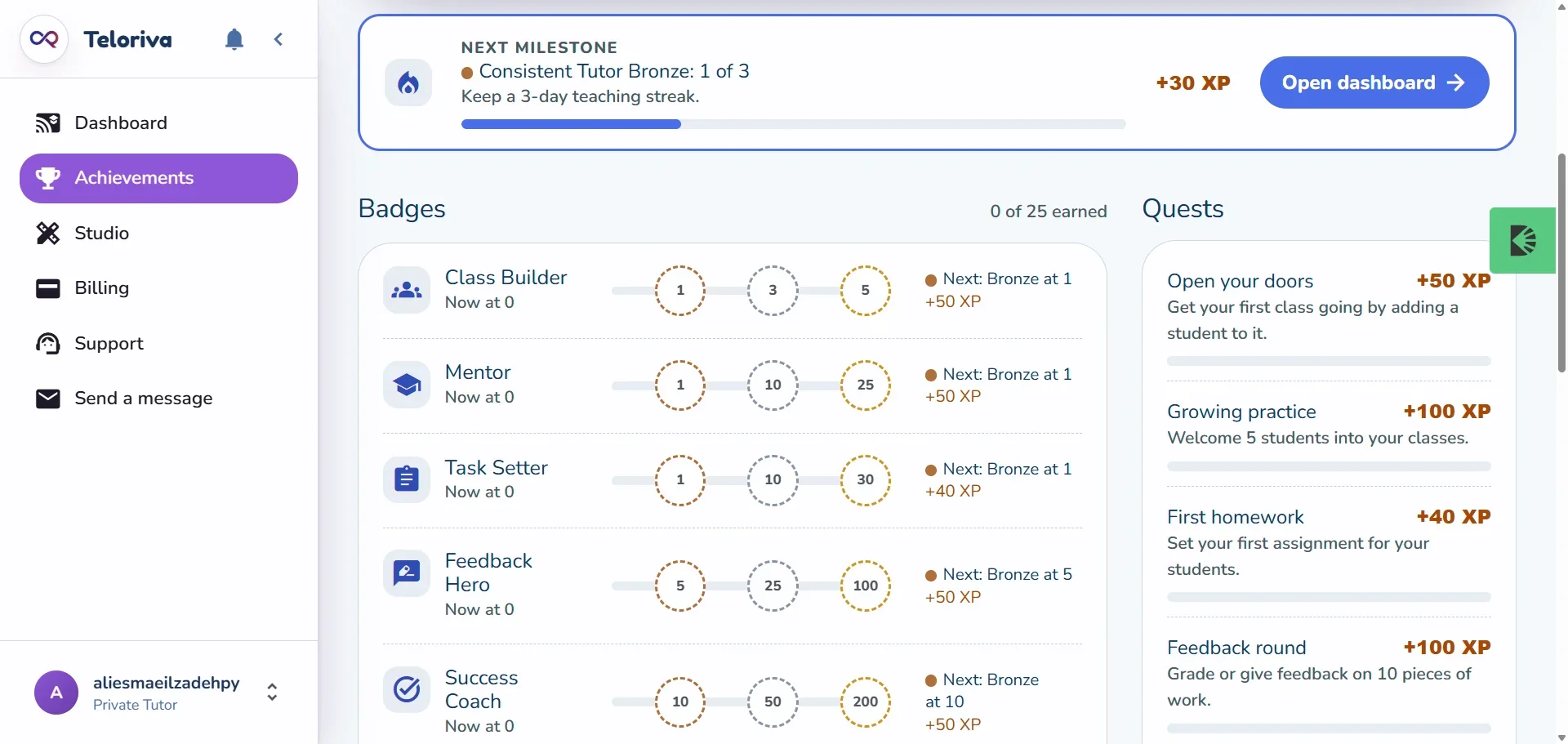
The overview summarizes overall activity across all enrolled subjects for the current week.
Check weekly study time and streaks
The weekly chart highlights active study days:
- Time spent: Total minutes invested in learning cards and reviews.
- Daily streak: Confirms whether your child has met their daily study habit.
- Card accuracy: Shows the percentage of questions answered correctly on the first attempt.
Review course progress and mastery
Scroll down to the subject breakdown to inspect specific courses:
- See exactly which modules and stages have been completed.
- Identify topics where your child took extra attempts or asked the AI tutor for assistance.
- Check their retention ratings to verify if review lessons are being completed on time.
Tip. Use these insights during homework discussions to focus encouragement on topics where your child worked through challenging material!
Still need help?
Message the team, or open a ticket if something is broken. We reply by email.