


Running live teaching sessions
Lesson 4 of 4
What you'll do in this lesson: - Launch an interactive Auto-Teach session for your class - Use the teacher console for live pacing and stage transitions - Use Take Over and Skip controls to guide your students - Inspect whole-class comprehension reports after the session
Launch a live session
From Auto-Teach Studio, select a published course and choose the class you want to teach. Click Launch.
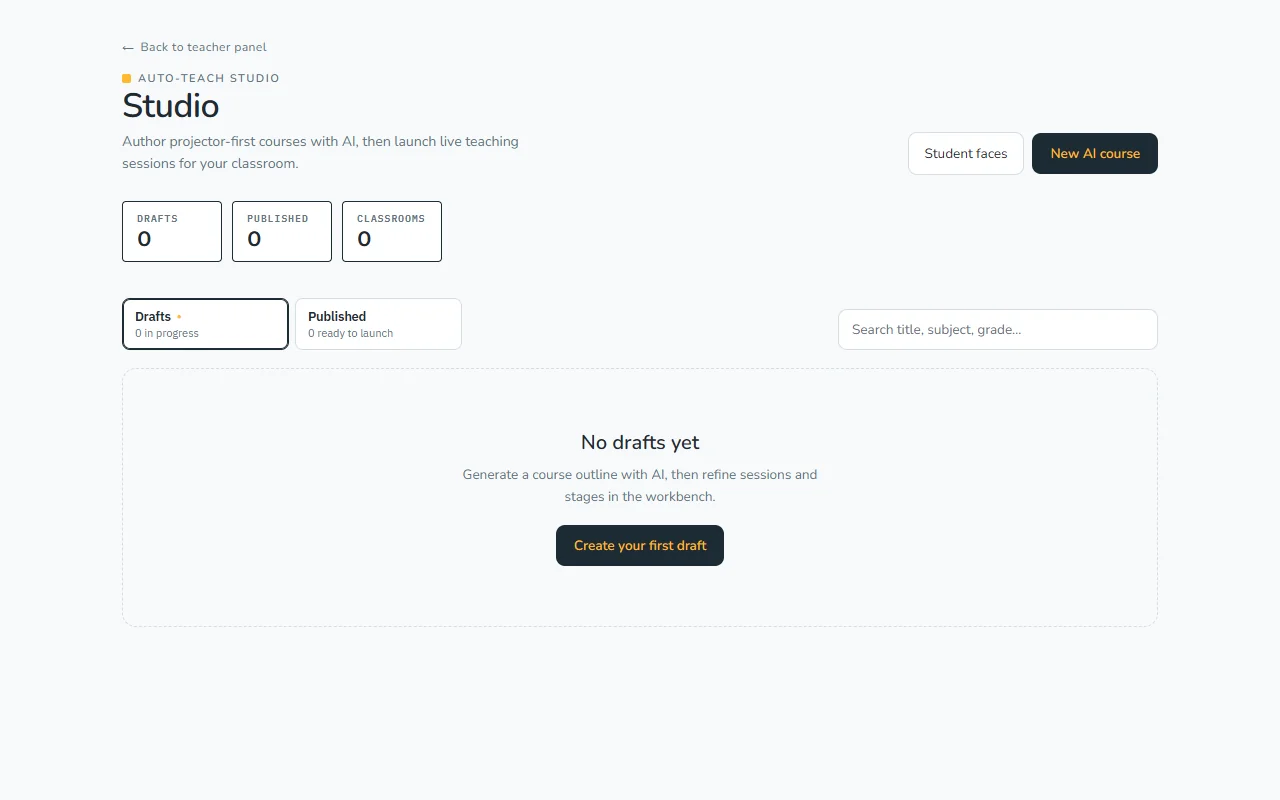
If you want to rehearse by yourself before teaching students, launch the session without selecting a class for a solo run.
Steer pacing with the teacher console
During the session, the Teacher Console gives you real-time control over the lesson flow:
- Step forward or backward through stages at your own pace.
- Repeat or restart an explanation card if your students need another look.
- Use the drawing pen to highlight diagrams and annotate directly on screen.
- Toggle Focus mode to remove side navigation and center all attention on the slide.
Use Take Over and Skip controls
Maintain complete instructional authority throughout:
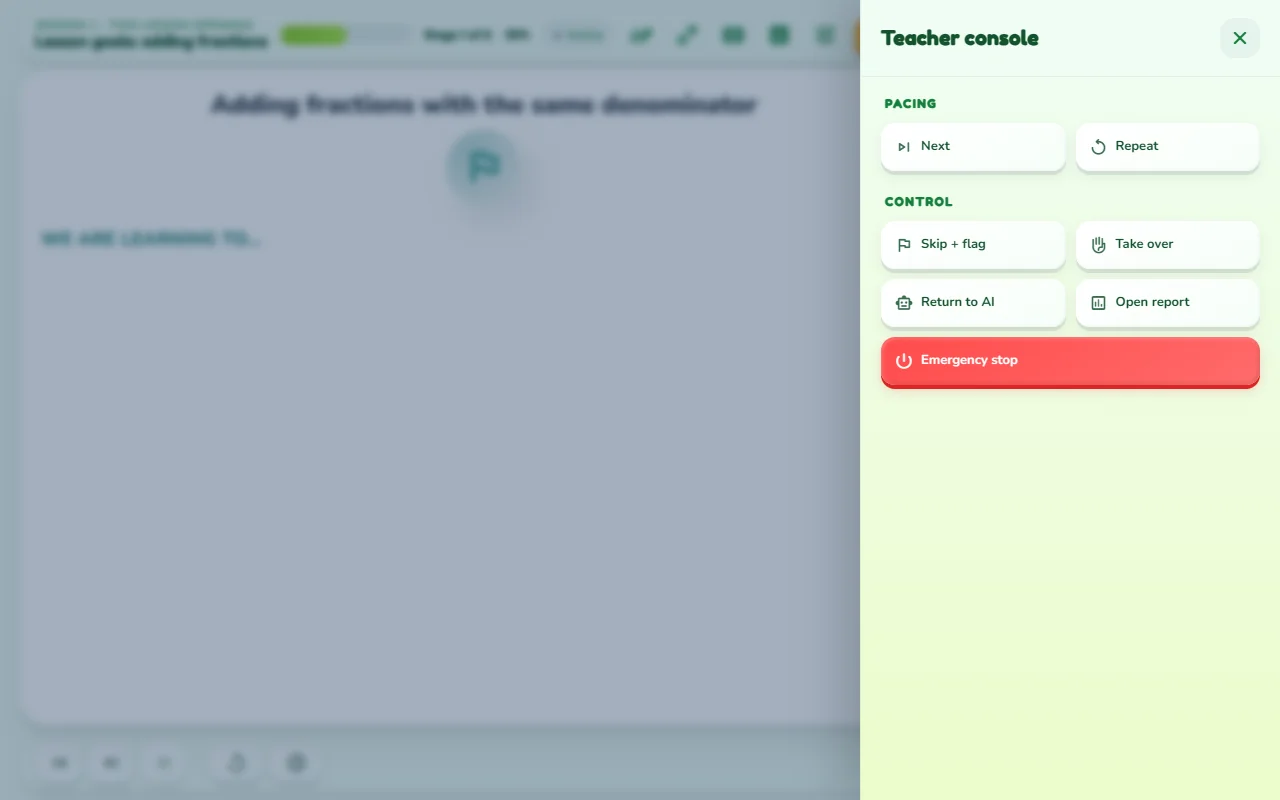
- Take over: Instantly pauses AI narration so you can speak directly to your students and provide your own explanation. Hand control back when ready.
- Skip + flag: Moves past a stage immediately while tagging it in your session log for later follow-up.
- Ask the AI teacher: Ask quick questions or get contextual suggestions without leaving the presentation.
Inspect the class report
When you finish the session, click End session & view report:
- Review class-wide response accuracy across each interactive check.
- Identify specific stages where students demonstrated hesitation or confusion.
- Use the stage-by-stage timeline to plan your next tutoring session.
Tip. If you ever get disconnected, your session stays active in the background — simply click Rejoin from your dashboard to jump right back in!
Still need help?
Message the team, or open a ticket if something is broken. We reply by email.